
Introduction
The Stello AI Compensation Planning Module centralizes employee data, tracks budgets in real time, and ensures salary, equity, and bonus adjustments are handled efficiently, transparently, and in line with organizational policies.
Managers and HR teams can use this application to make fair, market-aligned, and compliant pay decisions for their workforce.
Budget Summary Panels
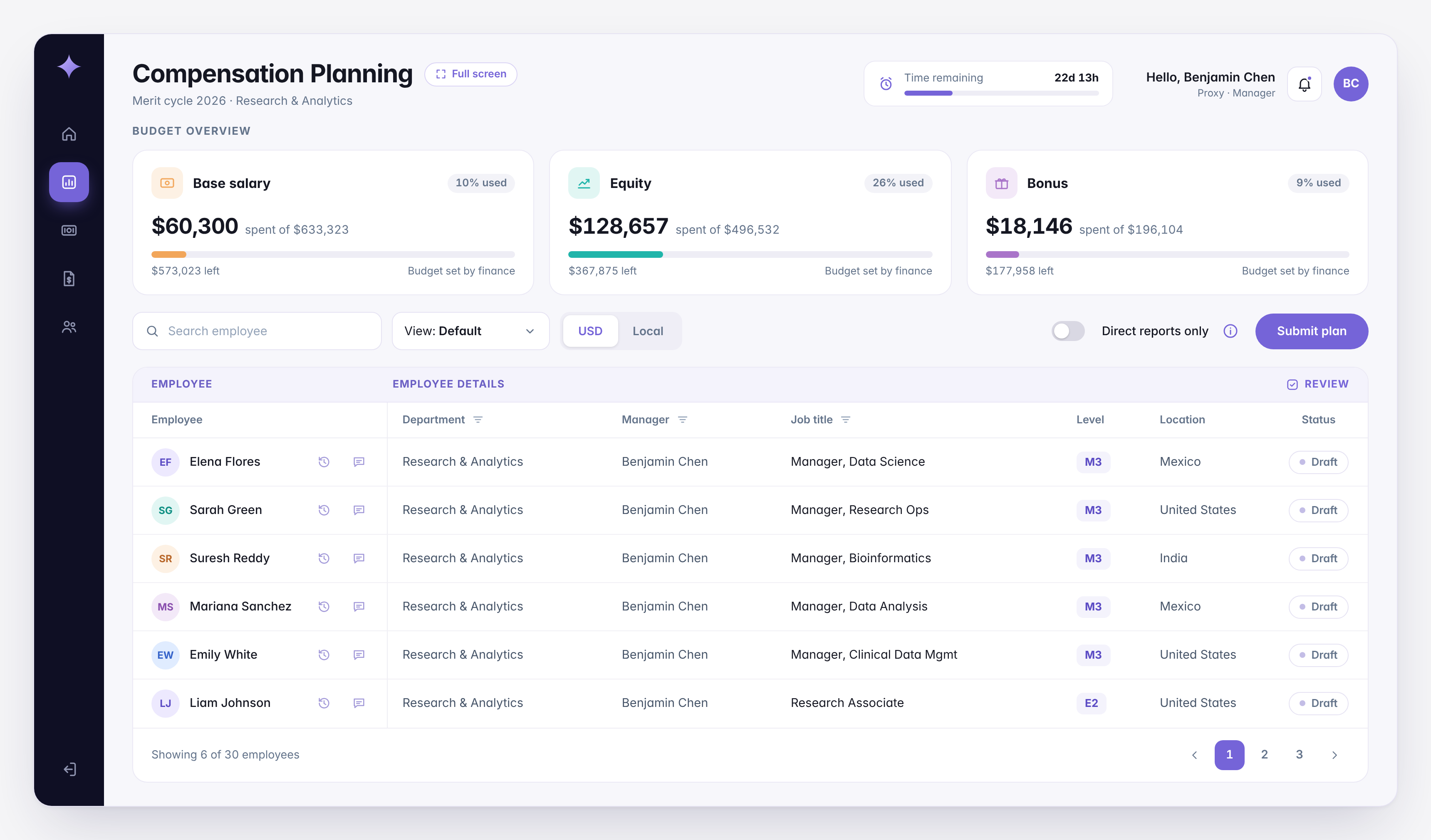
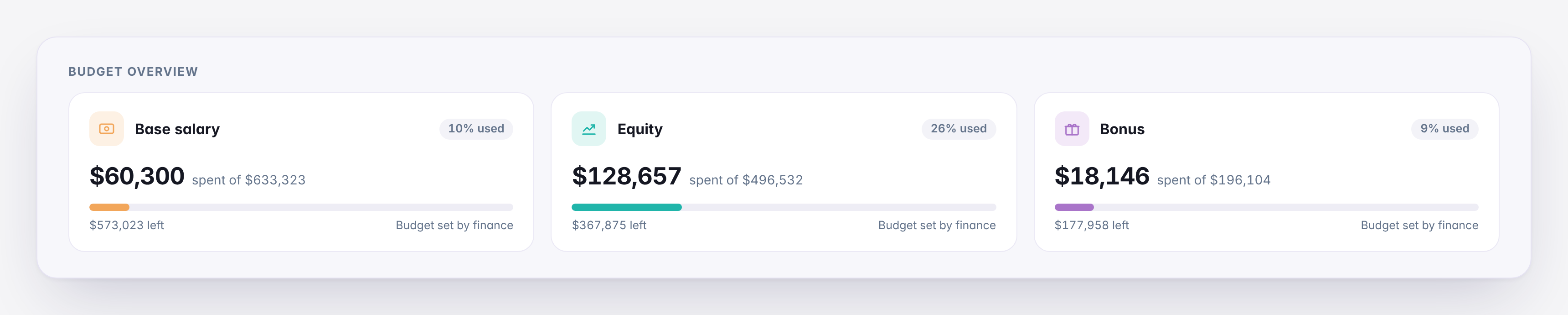
At the top of the interface, you will see three distinct budget panels labeled Base Salary, Equity, and Bonus. Each panel provides real-time insights into budget utilization for that compensation category:
- The $ Metrics Bar – Shows how much of the allocated budget has been used (e.g., “$1,200,000 / $1,500,000”).
- Colored Bar – Visually represents the budget currently utilized with respect to the budget allocated for the Base Salary, Equity and Bonus to the Manager. It increases as a greater percentage of the overall budget is allocated.
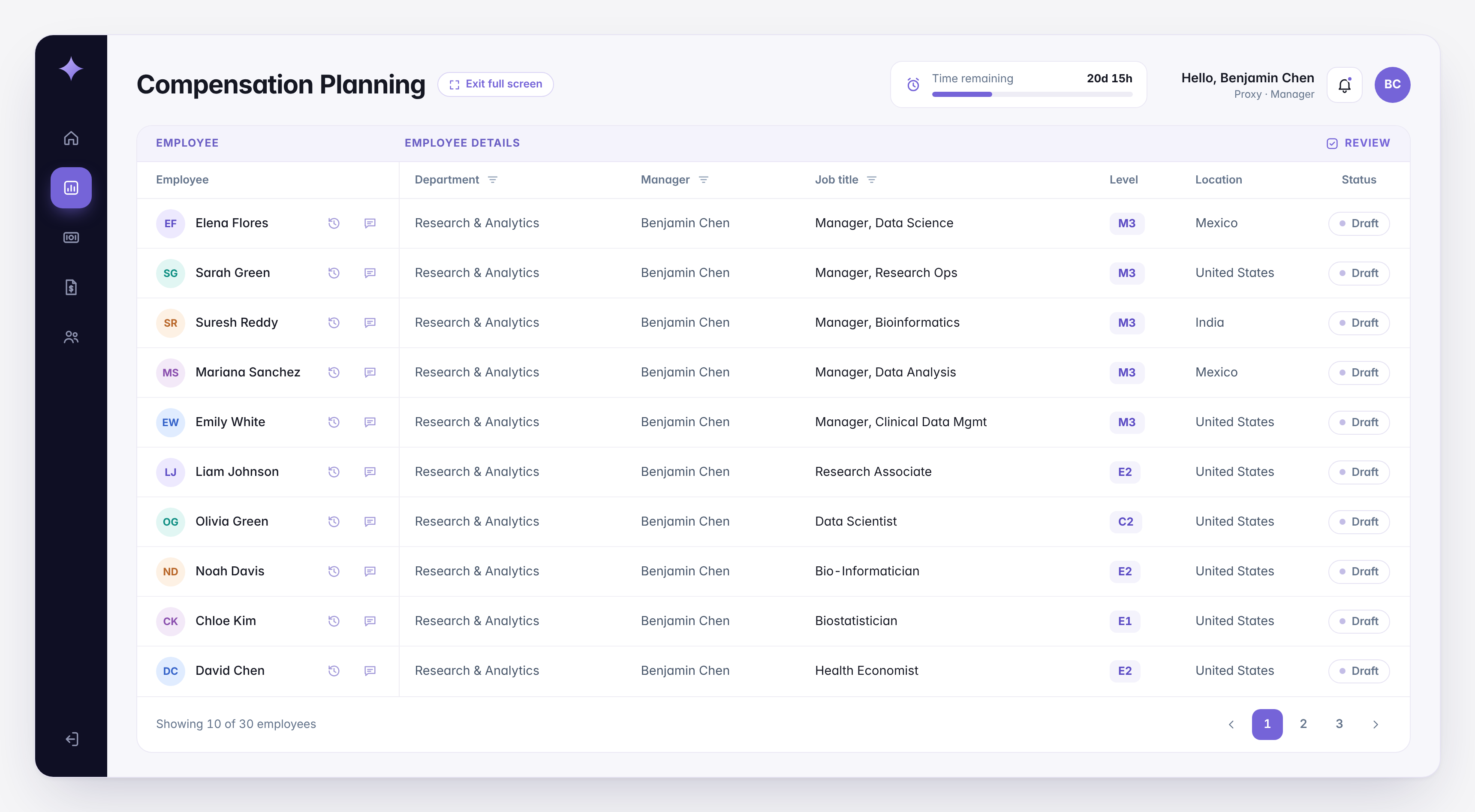
- Cycle Countdown – located at the top of the page and indicates how many days remain in the planning cycle (e.g., “14 Days Left”).
- Enable Full Screen – Expands the view to occupy the entire screen.
How to Use It:
Use panels to monitor allocations, spent amounts, remaining budgets, and cycle time while adjustments update in real time.
Controls Above the Table

- 1“Search Employee” – Allows managers to quickly look up a specific employee by name.
- 2"View Direct Reports Only" – Shows only people who report directly to the manager logged in to the platform.
- 3Currency Toggle – Helps the manager switch between USD and the employee’s local currency.
- 4Plan Details – Displays a real-time list of all planners assigned to a compensation plan cycle and their corresponding submission statuses.
- 5“View” – Lets users filter and display only one compensation component at a time (Base, Equity, or Bonus).
- 6“Submit” – Allows a manager to send compensation changes to their manager for review; once sent, a manager loses editing capabilities and can only view their submitted change.
How to Use It:
Use controls to search employees, filter views, switch currency, check planner statuses, or focus on specific compensation components.
Employee Table
The Employee Table is where you can view and manage all compensation-related details for each employee you oversee. This table displays each employee on a separate row with comprehensive information. You can filter by each column by using the filter icons on the top row of the table.
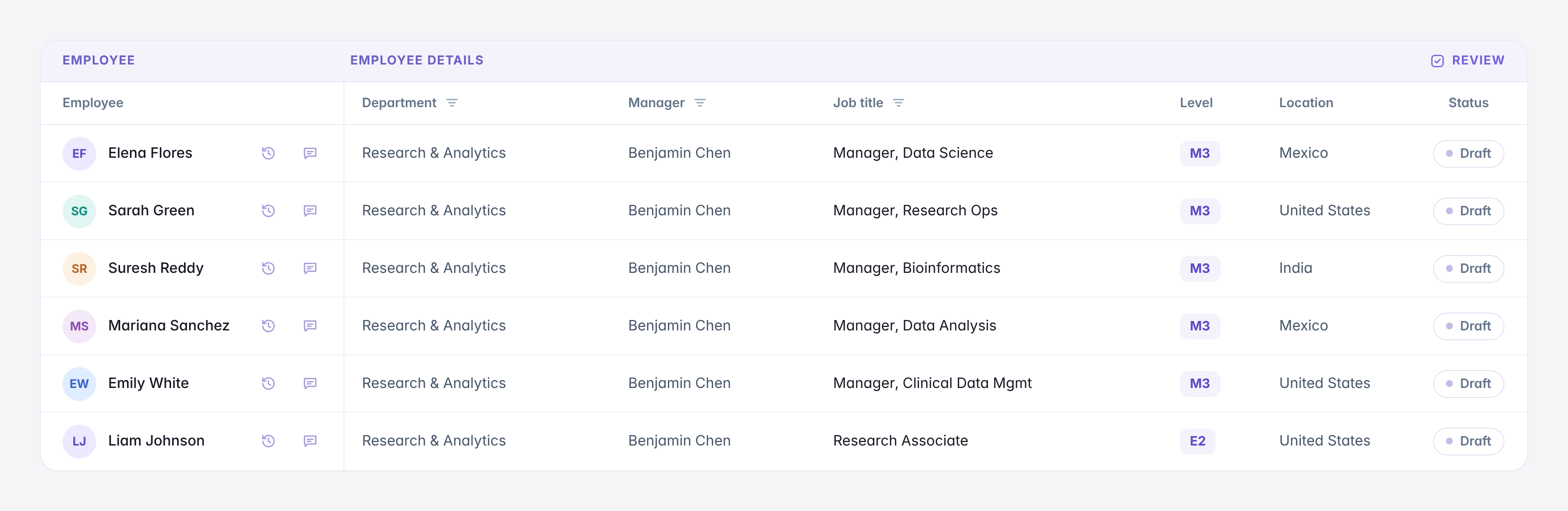
Columns and Descriptions:
Compensation Adjustment Panel
Contains four key sections for editing employee pay components:
Base Salary Adjustment
- View current salary, salary range, and Compa-Ratio (current pay ÷ market midpoint).
- Review AI recommendations, enter manual raises, and calculate the New Base Salary.
Equity Adjustment
- View total and unvested equity.
- Updated totals reflect new allocations under the vesting schedule.
Bonus Adjustment
- View target bonus and Stello AI recommendations.
- Manually update or confirm new bonus values.
Total Cash Compensation Summary
- Displays the live total of the updated Base Salary with Equity and Bonus.